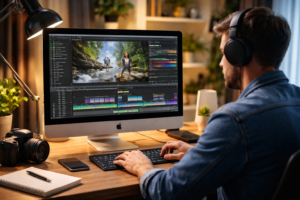
Final Cut Pro Tutorials
Can you give me step-by step instructions on how to create a photo slideshow/movie in Final Cut Pro? I would like to begin with having images and video in the Apple photo app. creating the project, libraries, events, etc in Final Cut Pro. I would like to add music and titles as well as transitions between images and video. I would also like to be able to do zoom and camera effects on still images.
Absolutely — here’s a clean, step-by-step workflow that starts in Apple Photos and ends with a polished photo + video slideshow “movie” in Final Cut Pro, including music, titles, transitions, and Ken Burns/zoom camera moves on stills.
1) Prep in Apple Photos (so Final Cut is painless)
- Create an album for the project
- Open Photos
- Go to Albums → + → New Album
- Name it (example: Trip to Utah 2025).
- Add the photos + video clips you want in the slideshow.
- Do quick cleanup now (optional but recommended)
- In Photos, do basic edits (crop/straighten/exposure) so you don’t fight problems later.
- If you have Live Photos you don’t want as video, decide now (you can still use them in FCP either way).
- Know the two import approaches
- Option A (common/easiest): Import directly from Photos inside Final Cut Pro.
- Option B (most reliable/portable): Export files from Photos to a folder, then import into Final Cut.
- This makes your library easier to move to an external drive and avoids “where are my originals?” confusion later.
If you want maximum reliability, do Option B:
Export from Photos (recommended)
- Select your album → Cmd+A to select all
- File → Export
- Photos: Export [#] Photos…
- Video: Export Unmodified Original… (or normal export if you want Photos edits baked in)
- Put everything into a single folder like:
- Movies/Slideshow Projects/Utah 2025/Media/
2) Create a smart Final Cut Pro structure (Library → Events → Project)
- Create a dedicated Library
- Open Final Cut Pro
- File → New → Library
- Name it: Utah 2025 Slideshow.fcpbundle
- Save it on:
- External SSD (best for speed and space), or
- Your internal drive if it’s fast and has room.
- Set Library storage locations (very important)
- Select the Library in the left sidebar
- Open the Inspector (top right) if needed
- Under Storage Locations, click Modify Settings
- Set Media and Cache to your fast drive/folder.
- This prevents storage mess later.
- Create an Event
- In the Library, click New Event
- Name: 01 Media (or by date)
- Create the Project (your timeline)
- File → New → Project
- Name: Utah 2025 – Main Edit
- Choose settings:
- Video Format: usually 1080p (great for YouTube and TV) or 4K (if your footage is mostly 4K and you want extra detail for zooms)
- Frame Rate: 30p is common; 24p feels “cinematic”; match your video if you can.
3) Import your photos + video into Final Cut Pro
Option A: Import from Photos directly
- In Final Cut: File → Import → Media
- On the left, look for Photos (or “Photos Library”)
- Select your album and import.
Option B: Import exported files (recommended)
- File → Import → Media
- Select the Media folder you exported to
- Import choices:
- Copy to library = safest/portable, but can create a big library file
- Leave files in place = smaller library, but you must keep the Media folder where it is
Tip: If you’re new to FCP, choose Copy to library so nothing goes missing.
4) Organize and set still-photo defaults (duration + motion)
- Set still-image duration default
- Final Cut Pro → Settings (or Preferences) → Editing
- Set Still images duration (common: 4–6 seconds)
- Set default photo movement (Ken Burns style)
- Final Cut Pro → Settings/Preferences → Editing
- Look for “Ken Burns” or “Start/End” default behavior for stills (varies by FCP version)
- If you don’t see it, no worries — you can apply it per image (next sections).
- Sort your album in the Browser
- In the Browser, you can sort by Date Created, Name, etc.
- For storytelling, I often:
- Put “must use” shots first
- Rename key clips in the browser (optional)
5) Build the slideshow timeline (fast method)
- Select your photos in the Browser
- Click first photo, then Shift-click last to select a range (or Cmd-click to pick)
- Press E to Append to the timeline (Project).
Do the same for video clips (or mix them in story order).
6) Add transitions between photos and clips
- Open Transitions Browser
- Click the Transitions icon (or press Cmd+5)
- Pick a style
- Cross Dissolve is classic for slideshows.
- Fade to Color for chapter breaks.
- Use “fancier” transitions sparingly.
- Apply transitions quickly
- Select where you want them (or select a range of clips)
- Double-click the transition to apply to the selection.
Make transitions look clean
- If a transition won’t apply, it usually means there isn’t enough “handle” media (mostly an issue with video). Photos are fine.
7) Titles (opening title + lower thirds)
- Open Titles and Generators
- Titles icon (or press Cmd+6)
- Add an opening title
- Drag a title onto the timeline above your first clips (as a connected title)
- Edit text in the Viewer or Inspector.
- Add lower thirds for locations/people
- Choose Lower Third style
- Drop it above a clip
- Adjust duration by dragging the ends.
Pro tip: Keep fonts consistent across the whole piece.
8) Add music (and make it sound good)
- Import music
- File → Import → Media (or drag an audio file in)
- You can also use the Photos/Apple Music/Soundtracks sources depending on what you have available.
- Place it on the timeline
- Drag the music below your video clips (audio lanes)
- Make your music fit the slideshow length
- Trim the music clip ends, or blade it:
- Position playhead → press B (Blade tool) → click to cut → press A to return to Select tool
- Fade in/out
- Hover near audio clip ends to reveal fade handles
- Drag for a smooth fade.
- Duck music under dialogue (if any)
- Select music → in Inspector use volume keyframes, or
- Use audio roles/voiceover tools if needed.
9) Zoom / camera moves on still photos (Ken Burns + keyframes)
You have two great options:
Option 1: Ken Burns tool (fast + clean)
- Select a photo clip in the timeline
- In the Viewer, choose Crop tools
- Select Ken Burns
- You’ll see Start and End rectangles
- Set the start wide and the end tighter (or pan left→right)
- Click Done
This is the classic slideshow move and works great.
Option 2: Transform with keyframes (more control)
Use this when you want more than just start/end.
- Select the photo clip
- In the Viewer, click Transform
- Move playhead to the start of the photo
- In the Inspector (or Viewer), add a keyframe for:
- Scale
- Position
- Rotation (optional)
- Move playhead later in the clip
- Change scale/position to create the move
- FCP animates between keyframes.
Tips for still-photo motion
- Avoid huge zooms on low-resolution images (they’ll look soft).
- Prefer subtle moves: 100% → 115% often looks better than 100% → 160%.
- If you’re editing a 1080p project, high-res photos give you more room to zoom.
10) Make the slideshow feel “edited” (pace + rhythm)
- Adjust durations
- Select a photo clip → Ctrl+D (type duration like 5. for 5 seconds)
- Use faster cuts for action, longer for scenic shots.
- Cut on the beat
- Turn on waveforms or enlarge audio track
- Make cuts at musical accents for a pro feel.
- Use “chapter breaks”
- Add a quick fade to black + a title card between sections (Day 1 / Day 2 / etc.)
11) Color and matching (quick wins)
- For iPhone video mixed with other cameras:
- Use the Color Inspector for quick exposure/white balance tweaks.
- For still photos, you usually don’t need much if Photos edits are good.
12) Export (Share) your finished movie
- File → Share → Master File (or Share button)
- Settings:
- Format: Video and Audio
- Codec: H.264 (smaller) or HEVC (smaller, modern) or ProRes (huge, best quality)
- Choose destination and export.
Common pitfalls (so you don’t get burned)
- Missing media later: If you used “Leave files in place” then moved the Media folder, FCP will show missing files.
- Gigantic library: If you “Copy to library” with tons of photos/video, the library bundle can get huge.
- Choppy playback: Use a fast SSD and consider generating Proxy media for heavy 4K edits.
If you tell me:
- whether your final output is YouTube, TV, or sharing with family, and
- whether your footage is mostly iPhone / GoPro / Sony, and
- if you want 1080p or 4K,
…I’ll give you a “best settings” recipe (project settings + still durations + transition defaults + export settings) tailored to your gear and how you like to share your videos.
Hi, this is a comment.
To get started with moderating, editing, and deleting comments, please visit the Comments screen in the dashboard.
Commenter avatars come from Gravatar.